
Upload a candidate, get a ranked shortlist of the roles they should be specced into, find the decision-maker at each company, and send the message. This walks the whole flow, screen by screen.
Uploading a candidate
Get a CV and everything you know about the person into one place.
Go to Candidate Management and click Create in the top right. You land on Upload Candidate.
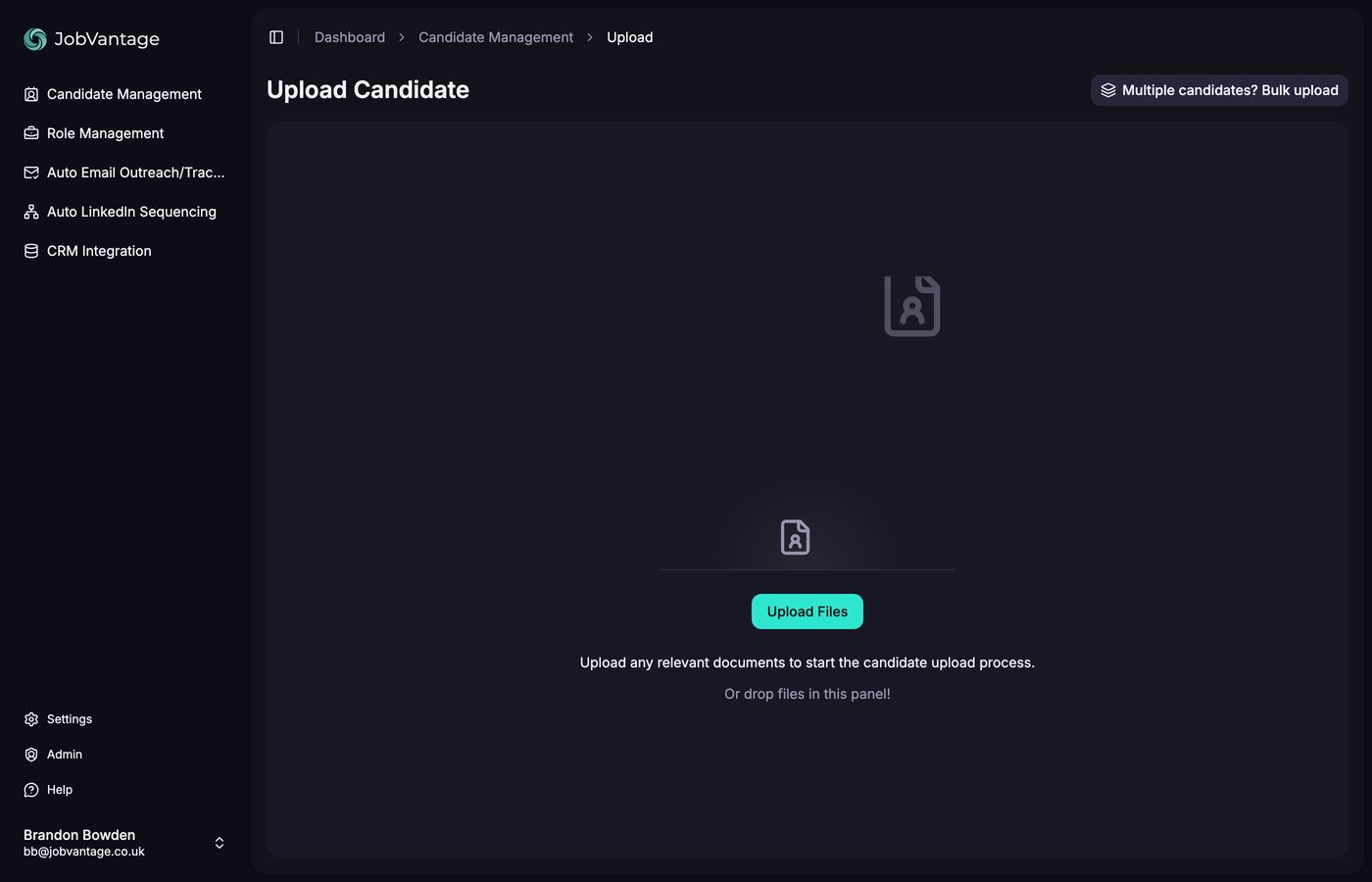
Upload the CV and the cover sheet or notes for the same person together, in one go. Select them both in the file picker, or add them one at a time with Add more. Whatever you have on that candidate, put it all in the same upload.
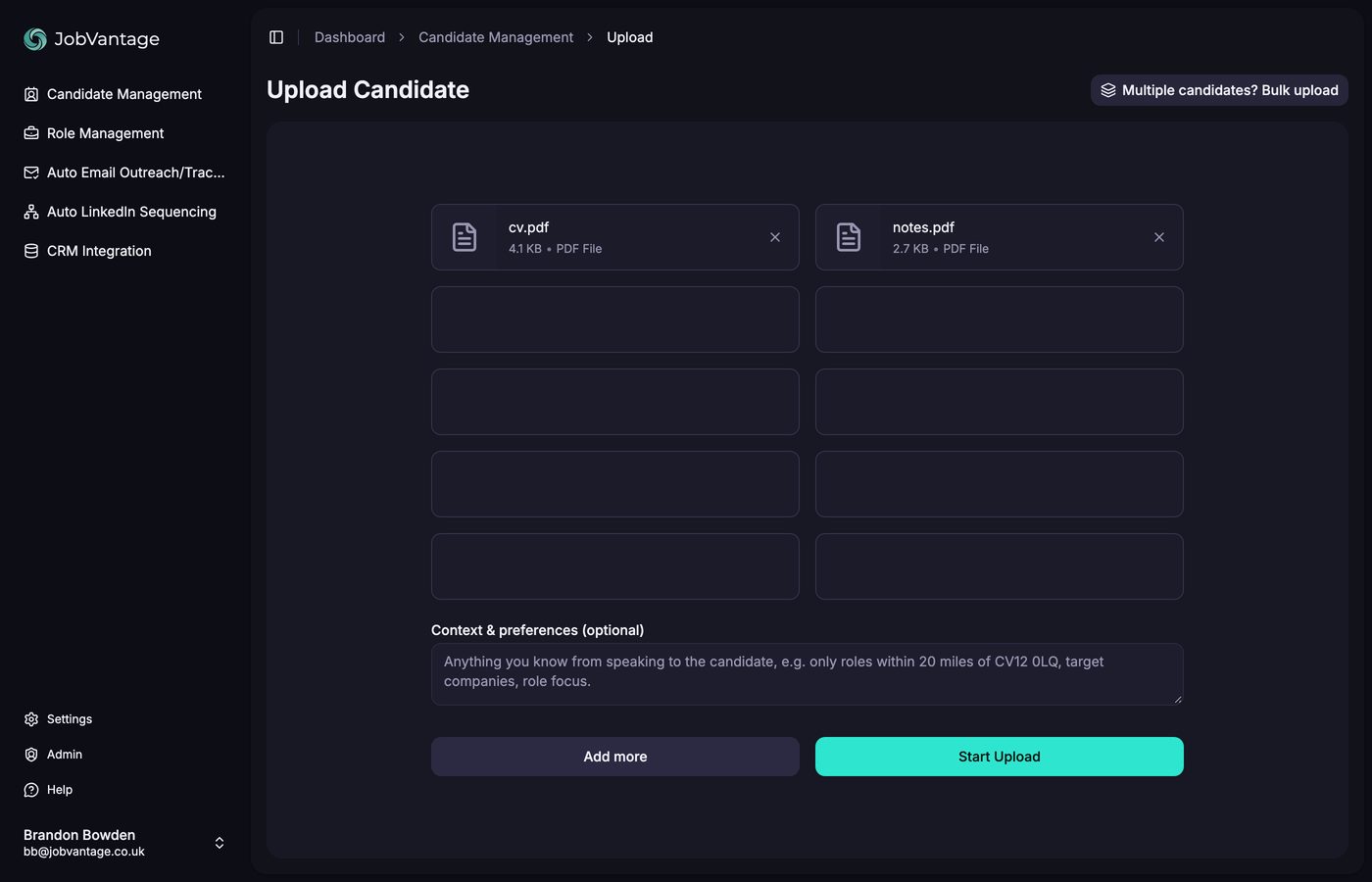
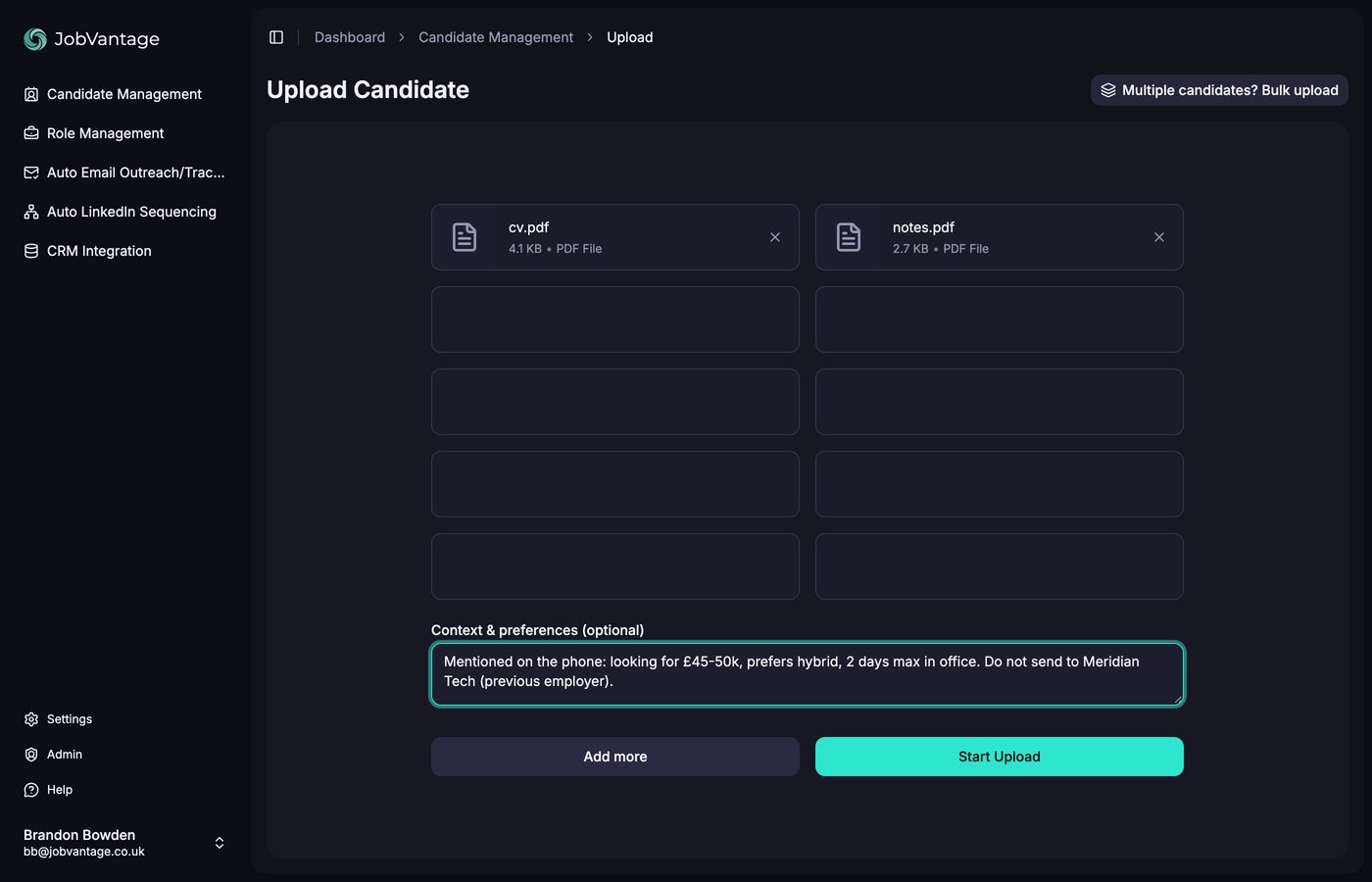
Underneath there is a Context & preferences box. Anything that is in your head but not written on the CV or the notes goes here: a salary they mentioned on the phone, a client they do not want to be sent to, the fact they will only travel two days a week. It gets used in the matching.
Then Start Upload, then Create Candidate.
Bulk upload
A pile of CVs in one go. The system works out who is who.
Next to Create sits Bulk. Drop a bag of CVs and notes for multiple candidates onto one panel and the system groups the documents by person for you, so you do not have to upload people one at a time.
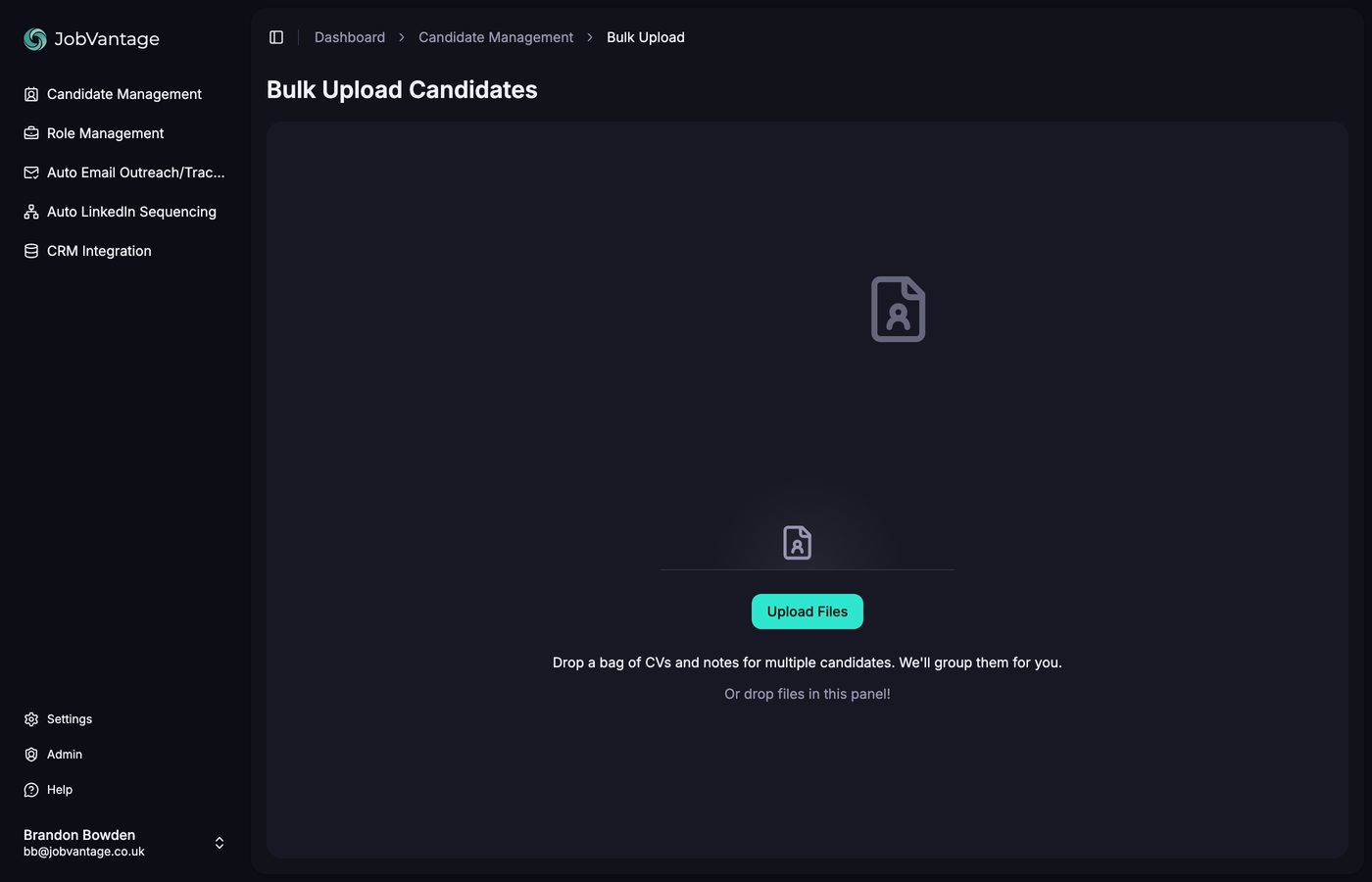
Use it for the morning pile: everyone goes in together, each person still comes out as their own candidate with their own profile and their own runs.
Checking what you uploaded
Thirty seconds here saves a wasted run.
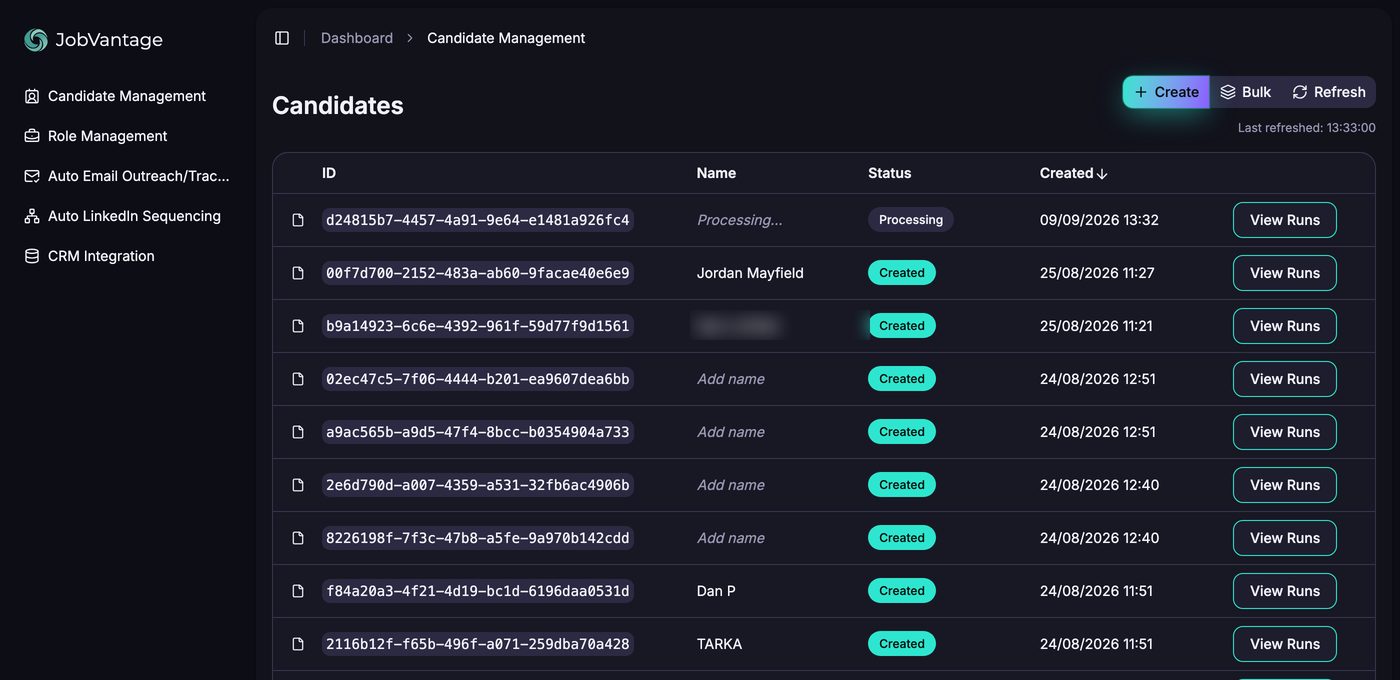
Your candidates appear in the list with a status: Processing while the CV is being read, then Created. Names are picked up automatically. If you uploaded an anonymised CV and it could not find a name, the row shows Add name. Click it and call them whatever you like. Existing names are editable the same way.
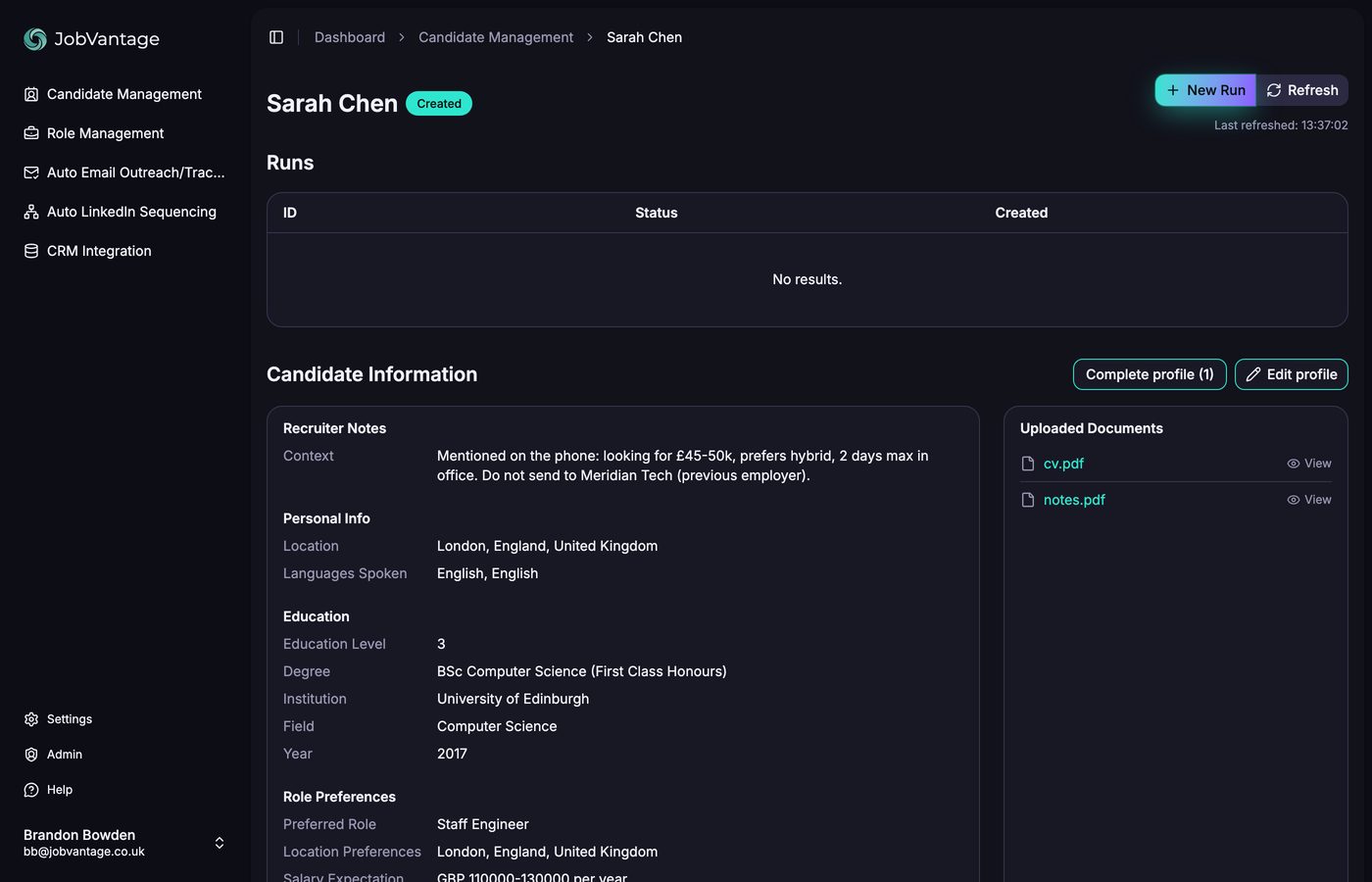
Open the candidate and the Uploaded Documents panel shows exactly what went in, with a View link on each document. Worth a glance: it is easy to upload the cover sheet and forget the CV.
Filling gaps and correcting the profile
Three buttons, and the one field that moves your results most.
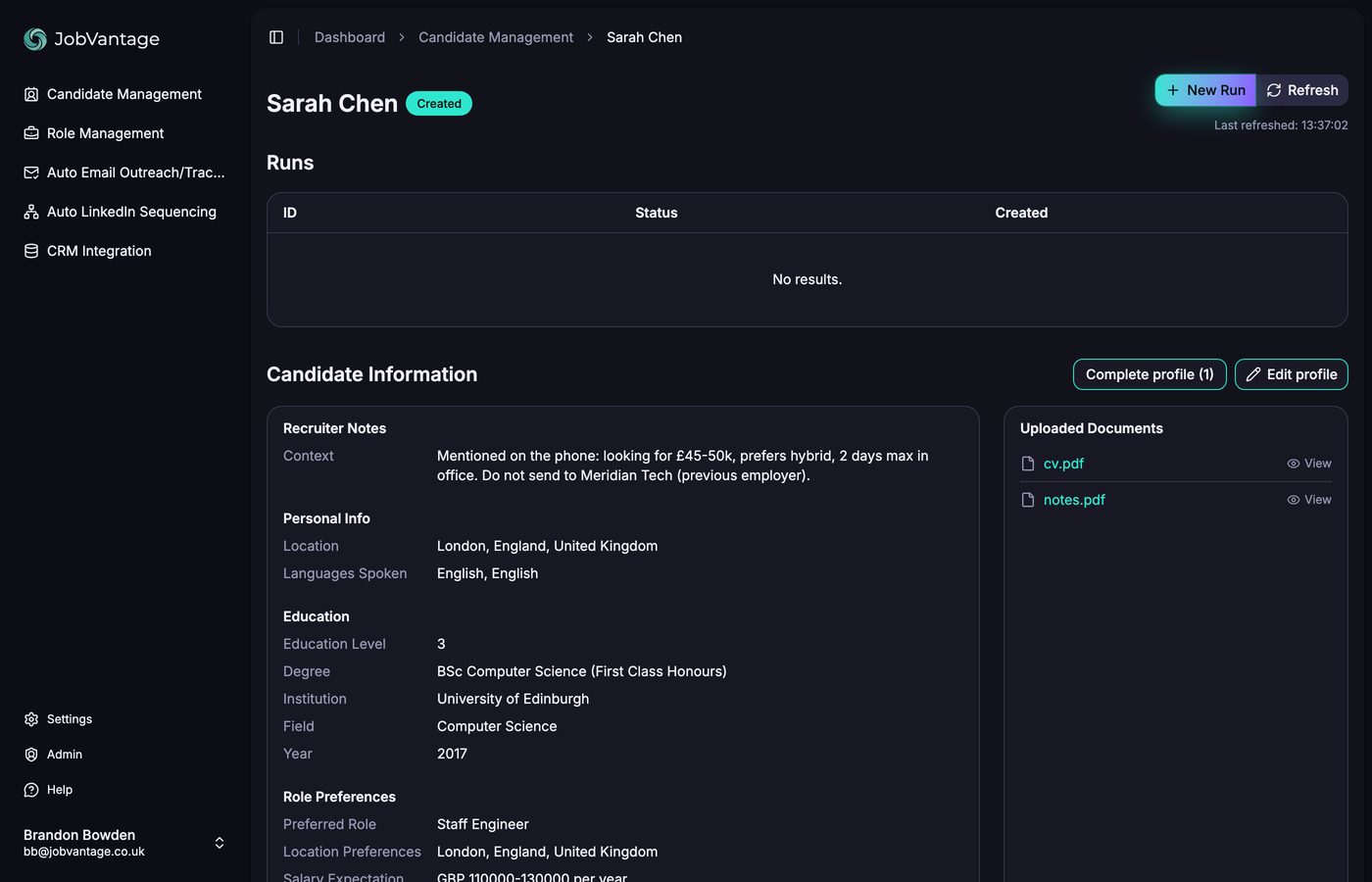
Three buttons sit on the candidate page: Complete profile, Edit profile and View full JSON.
Complete profile
This shows only what the system could not work out confidently from the CV. If there are gaps the button carries a count, for example Complete profile (2), and the prompt opens by itself when you first open the candidate. Fill what you know and save, or click Not now. Your answers are treated as confirmed and used on the next run.
Edit profile
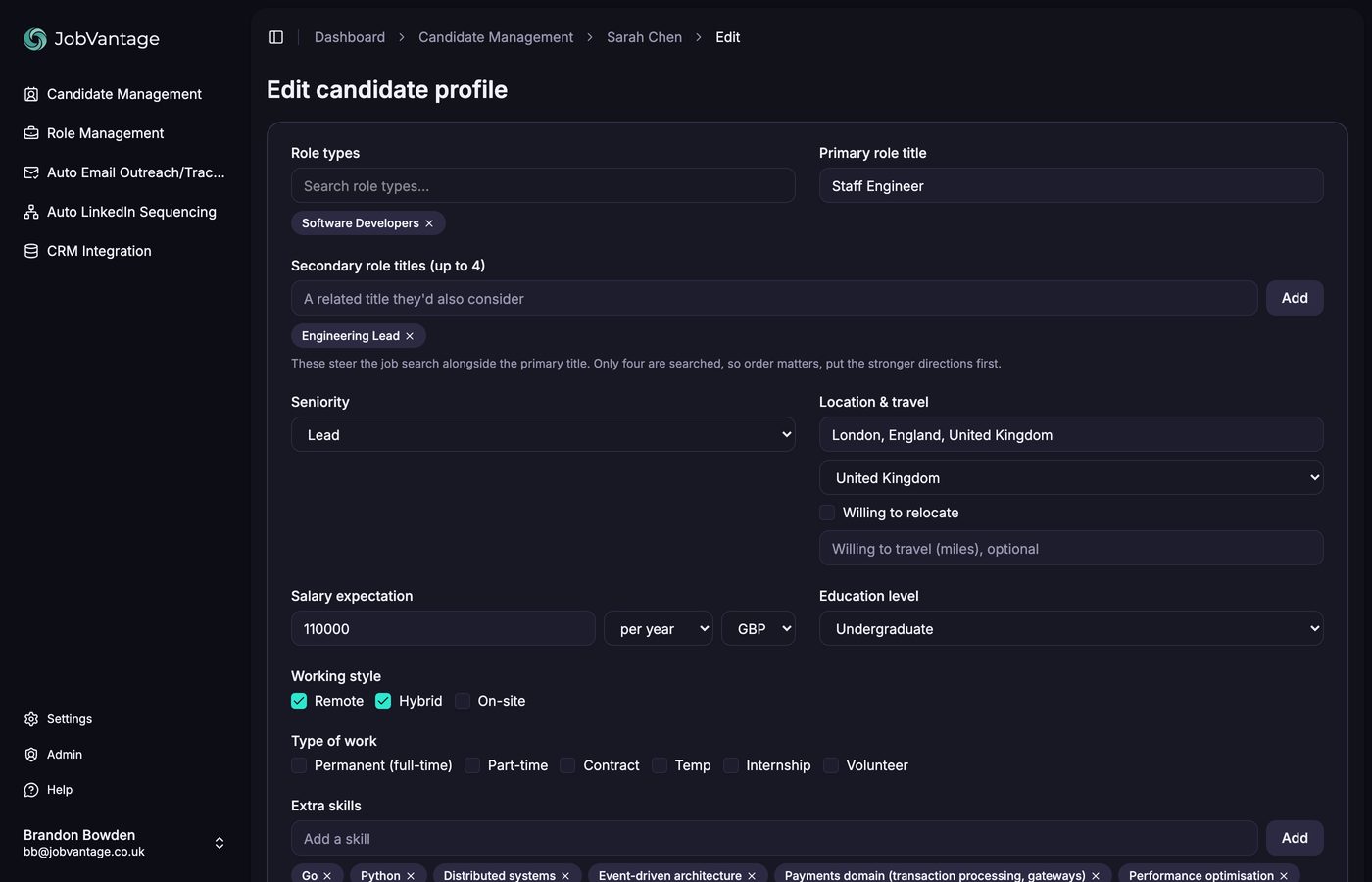
This shows everything the system did extract, all of it editable. Use it to sanity-check the AI's reading of the CV before you run.
View full JSON
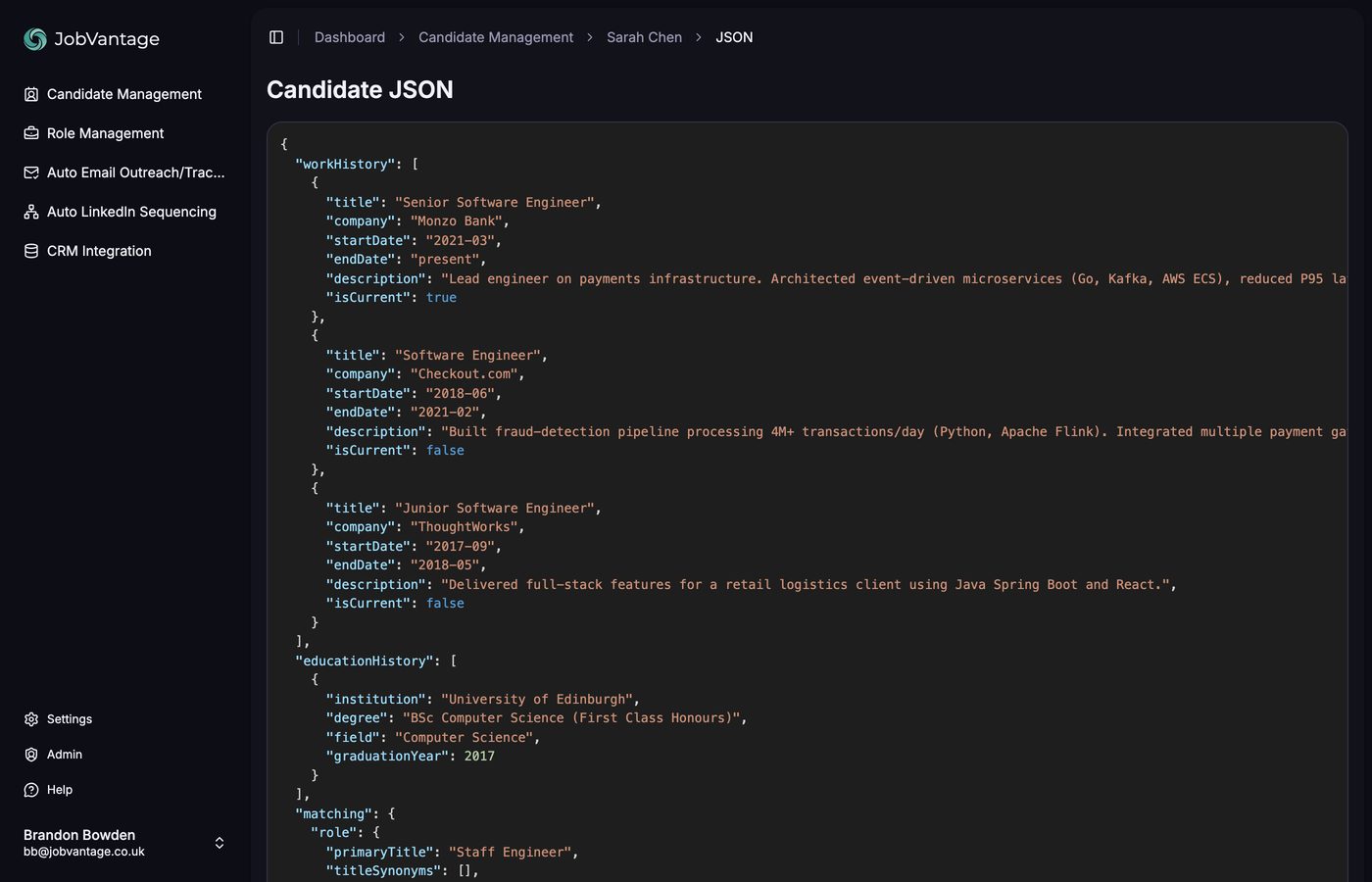
Want to see everything the system holds on the candidate (work history, education, and exactly what the matching will run on)? View full JSON shows the whole structured profile. Nothing is hidden: what you see here is what the matching uses.
Starting a run
The step that catches people out.
What happens behind the scenes: the system searches live job sources around the candidate's own location (it works wherever they are based, not from a fixed region), pulls a broad pool of adverts, filters out the noise in stages, and runs full AI matching on what survives. The run shows as Processing, then Matched when it is done.
The page does not update itself. Use Refresh, top right, to see the current status. Most runs land inside half an hour. Niche roles take longer, because the system has to search harder to hit the volume of jobs it wants. If something is still Processing after a couple of hours, get in touch rather than sitting on it.
You do not need to wait for one run before uploading the next candidate, and runs happen concurrently. Upload everybody first, start all the runs, then walk away.
Reading your matches
A ranked shortlist, and the whole funnel behind it.
Click the run to open the results. You get a ranked shortlist, drawn from a much larger pool, and the tabs along the top show the whole funnel, with counts: Matches is the shortlist, Weak Match holds the borderline ones, Filtered by Vector and Filtered Pre-Match are what the filters removed, and Jobs Found is the full set pulled for that candidate.
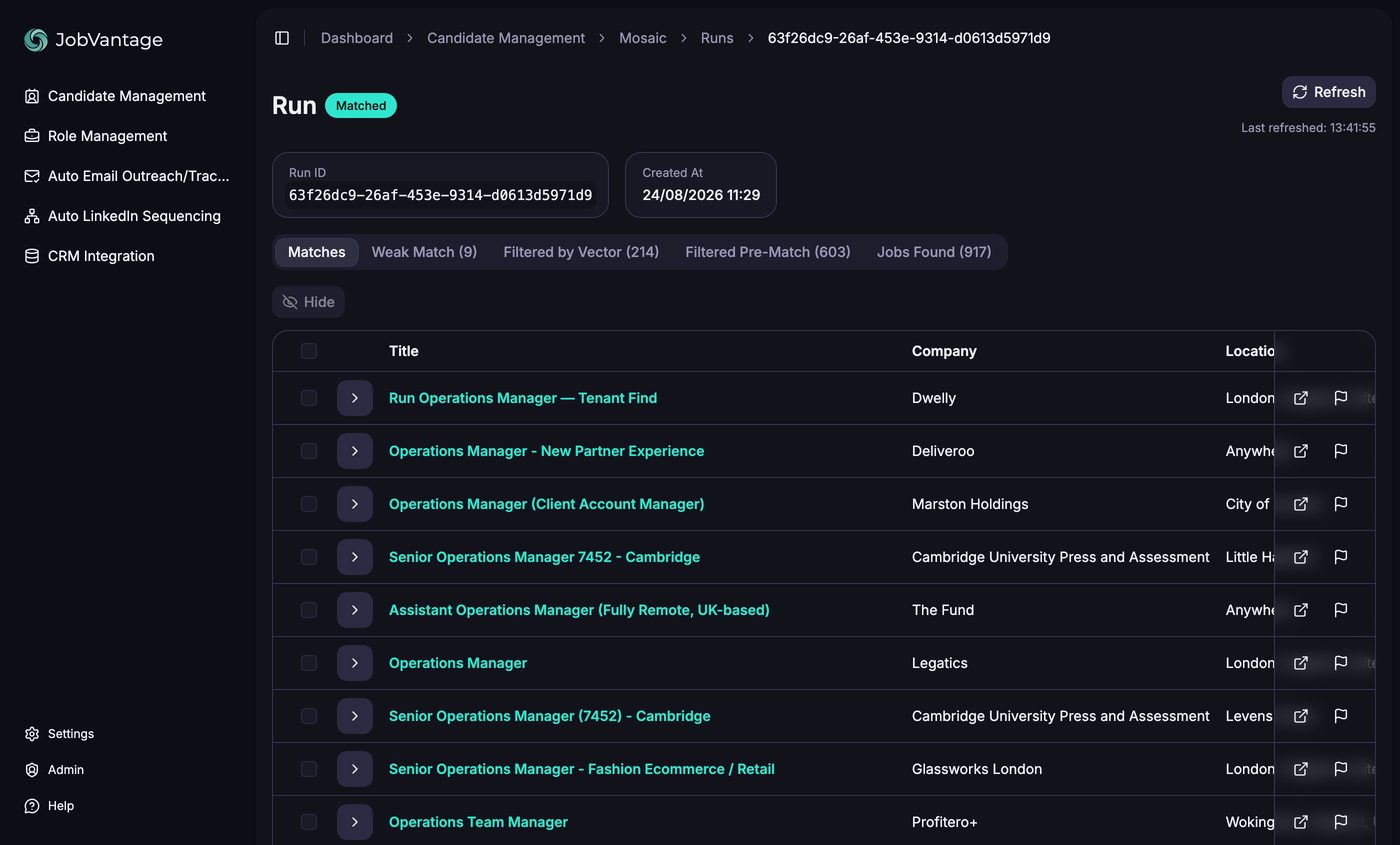
If a job you expected is missing, the tabs are where you find out why. Each row carries the company, location, salary where the listing shows one, work mode and a similarity score out of 1,000. Anything below about 650 does not make the Matches tab.
One honest detail: if a job source could not be reached during the run, the run is badged Partial results rather than pretending it searched everything. Re-run later or get in touch if you see it often.
The reasoning behind every row
Why it fits, what to watch, and how the score breaks down.
Click the arrow at the left of any row and the match opens up: Why it fits, Watch-outs the AI wants you to know about, the skills the job requires, and a score breakdown across role family, core skills, seniority and the practical factors.
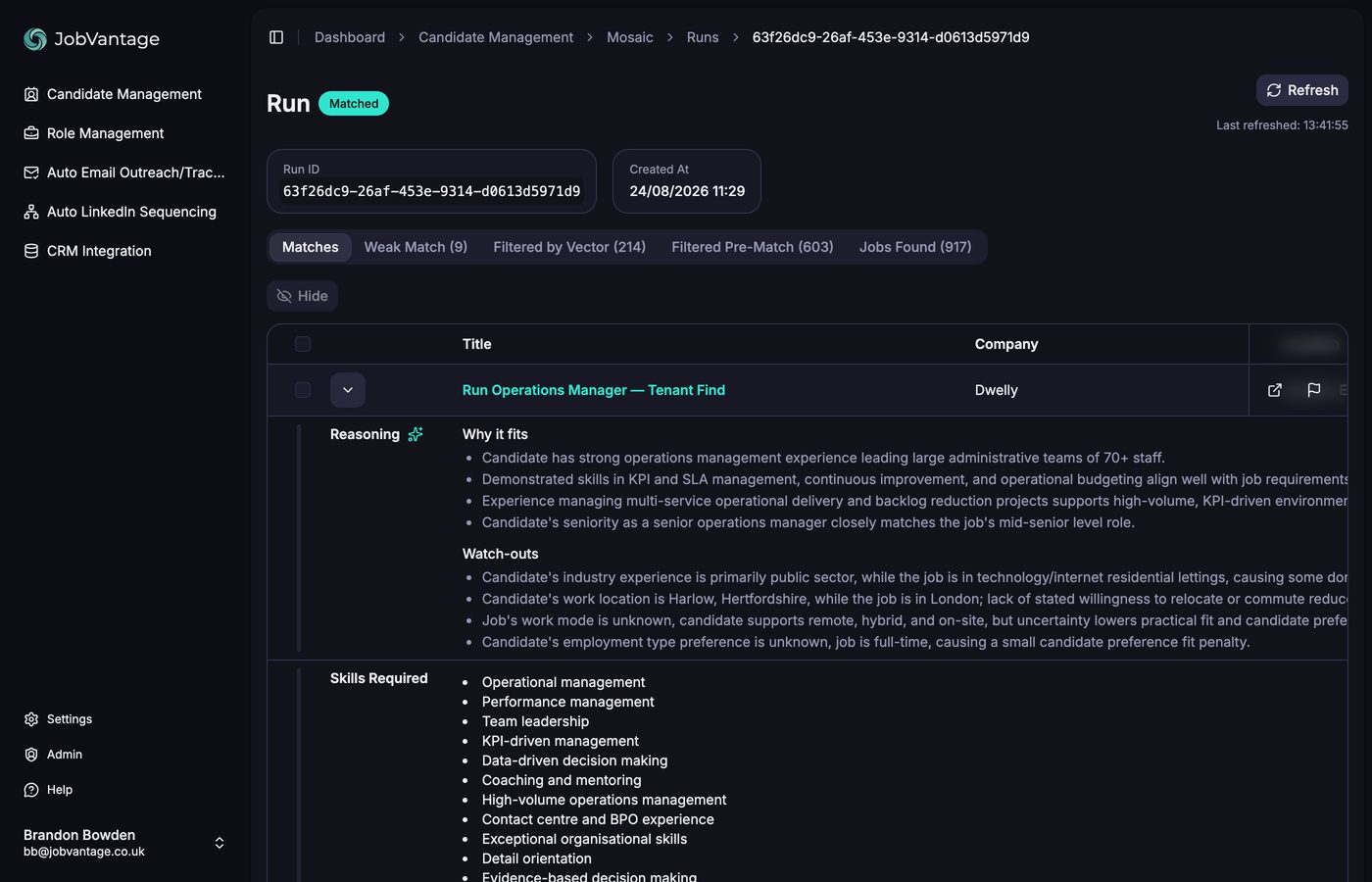
This is what you use to decide whether a match is worth speccing, and the watch-outs are what you use to pre-empt the client's objections when you write the message.
Cutting the list down
Hide the noise, flag the agencies, keep the list you will actually work.
Two icon buttons sit at the right of every match:
The system already strips agencies out at the start. It gets most of them, but from a job listing alone it is sometimes impossible to tell. You will spot ones it missed because you know the market. Flagging them teaches your account, so the problem shrinks over time.
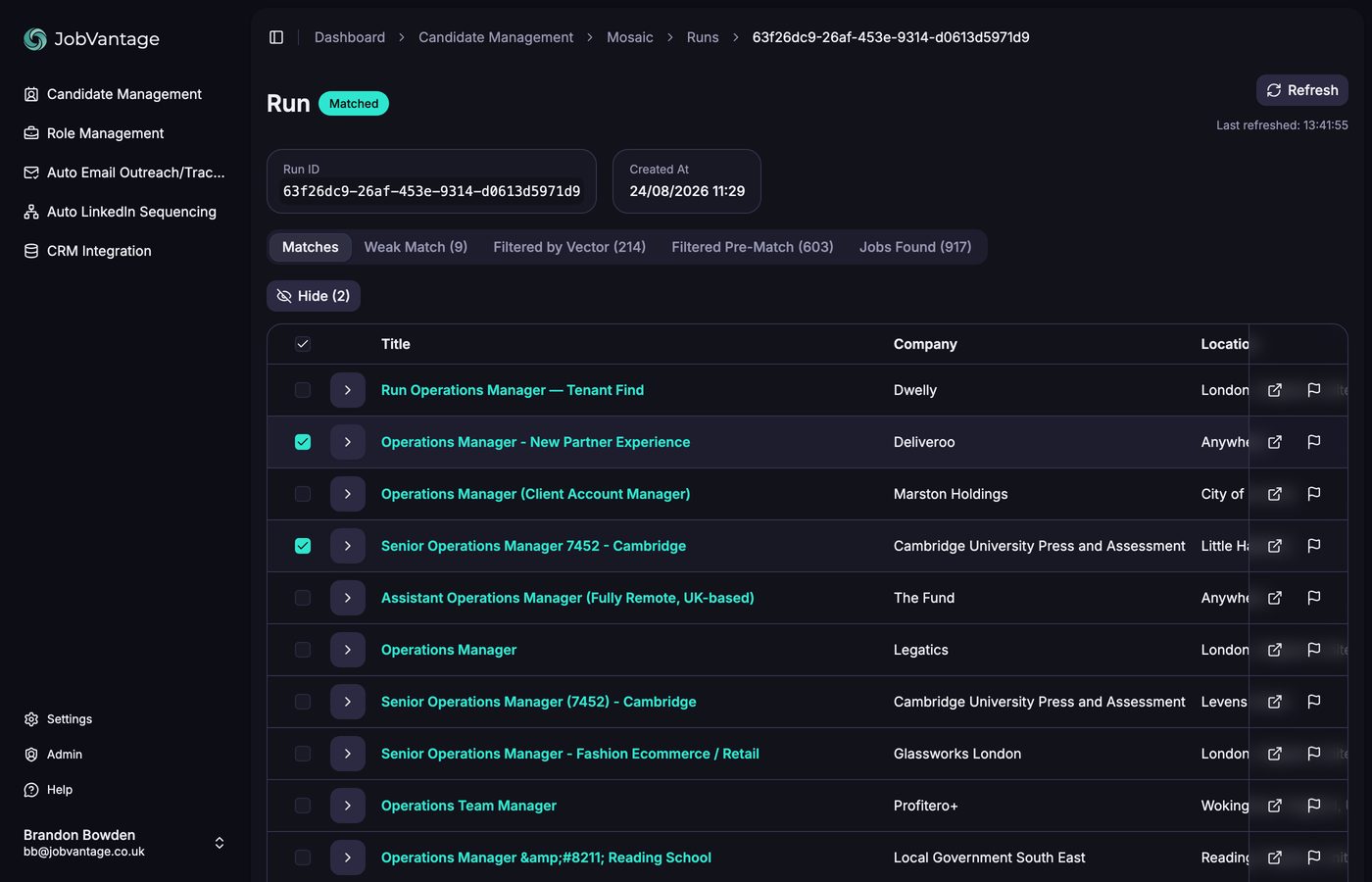
To build your shortlist, tick the roles you do not want and click Hide. What is left is the list you go and spec.
Speccing
The message, the decision-makers, and their contact details.
Click into a job you want to spec. This page has everything you need for the outreach: the job information, the similarity score, the full reasoning, and View side-by-side to put the candidate's CV next to the job if you want to check the detail before you write.
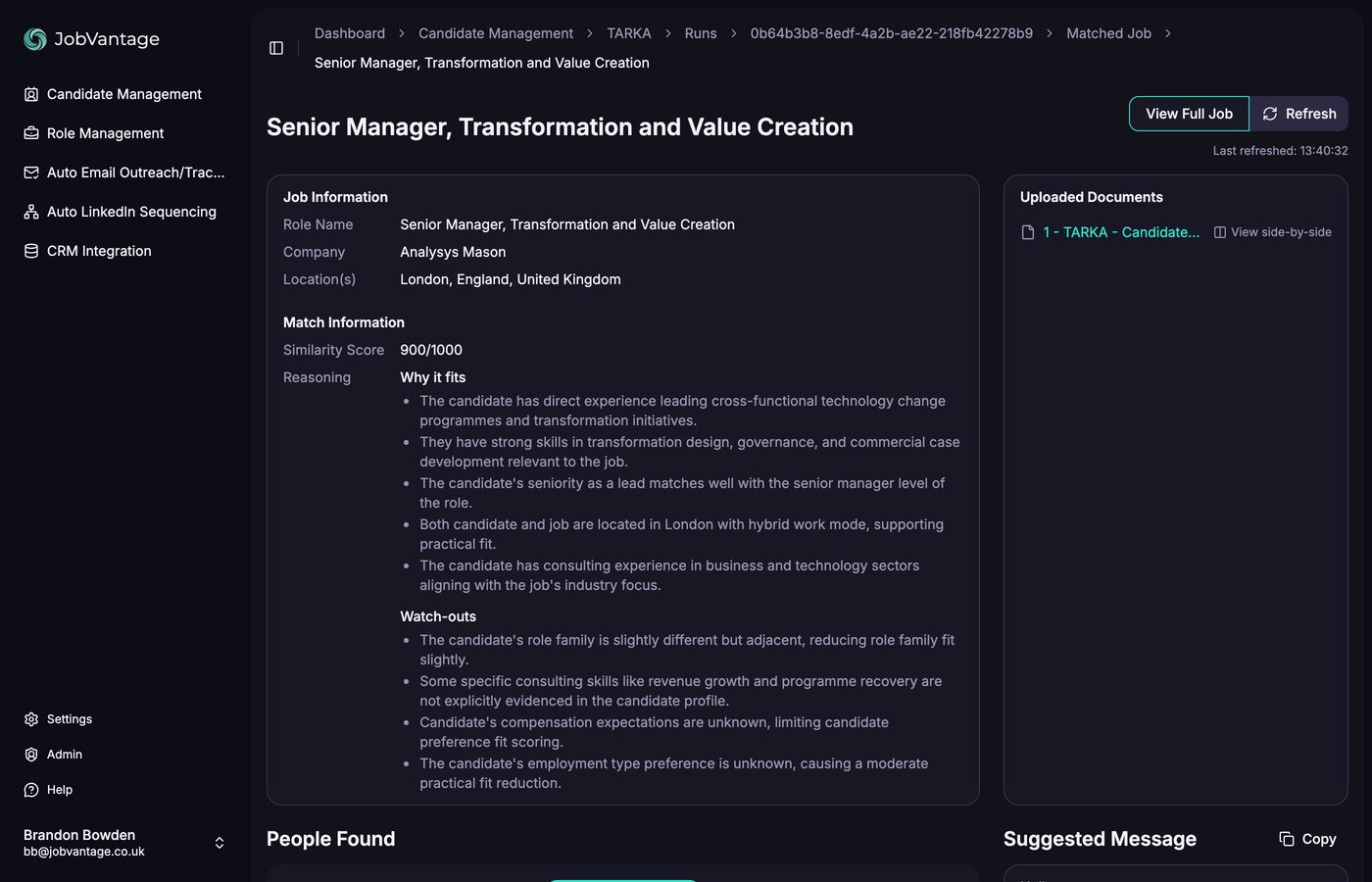
- Suggested Message is a drafted spec email built from the match. Copy it and edit it, or use it as a starting point.
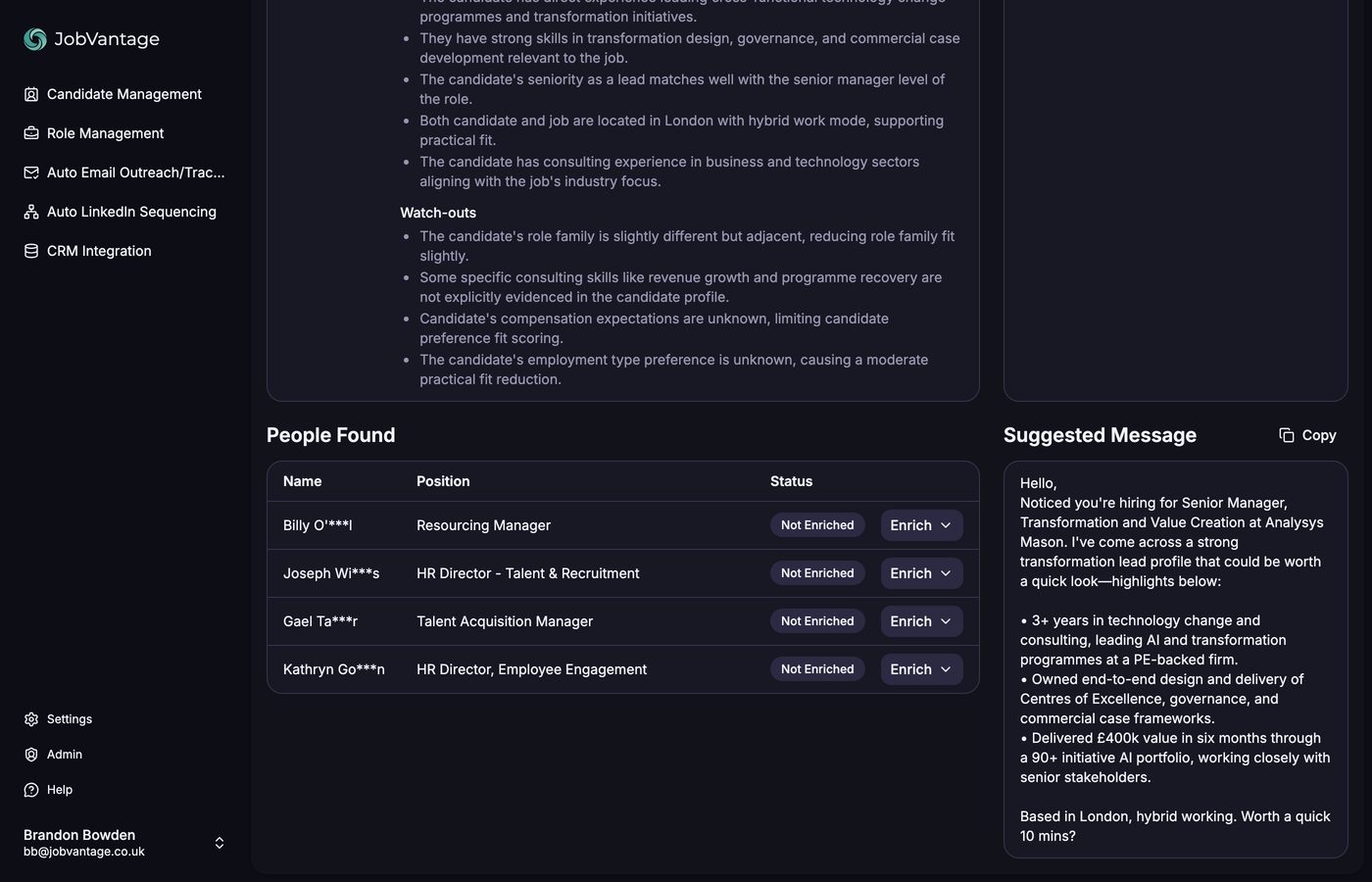
- Discover People finds who to contact at that company: the hiring manager first, then HR, talent acquisition, anyone relevant.
Names in the People Found table stay part-masked until you enrich them. Click Enrich on anyone worth contacting and you get their full name, LinkedIn profile, email address and phone number. Enrich as many as you want. From there, message them on LinkedIn, email them, or call them.
Role Management
The same thing in reverse: job spec in, candidates out.
Upload a job specification and the system finds candidates on LinkedIn who fit it.
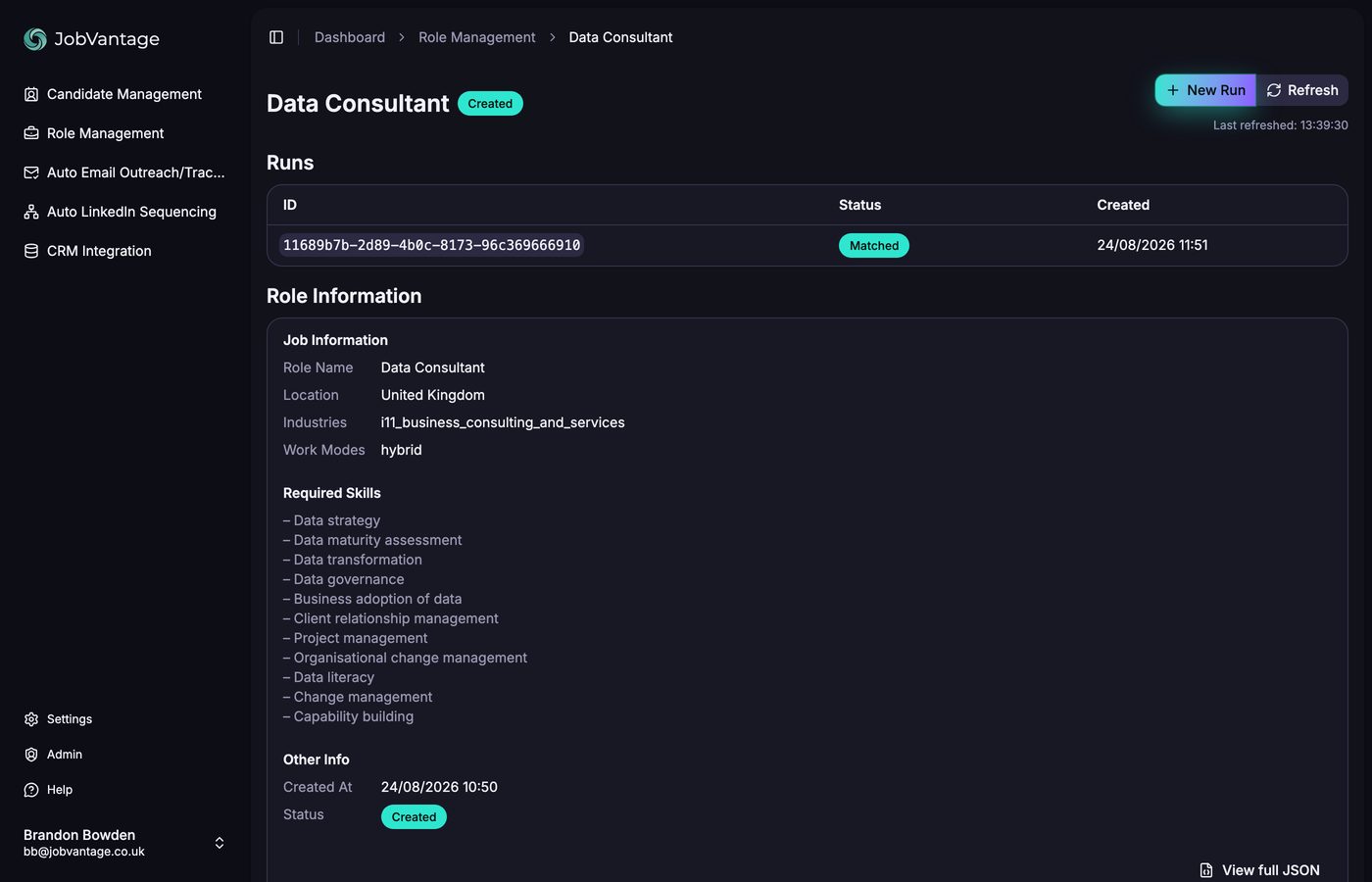
You get a match explanation on each candidate, including where they fit and where they do not, and a button through to their LinkedIn profile so you can approach them directly.
Use it when you are working a live vacancy: the speccing flow above fills your BD pipeline, this fills the role.
JobVantage Target Companies (on request)
Your target list, turned into a live map of who to call and why.
Target Companies answers a different question from matching. Matching starts from a candidate; Target Companies starts from your market. Give us your target or client list and your niche, and it comes back as a live view: who is hiring right now, who is showing intent to hire (funding rounds, expansion, headcount growth, leadership changes, buyouts and M&A), the live roles at each company auto-tagged to your niche, and the decision-makers who own the hire. Never TA.
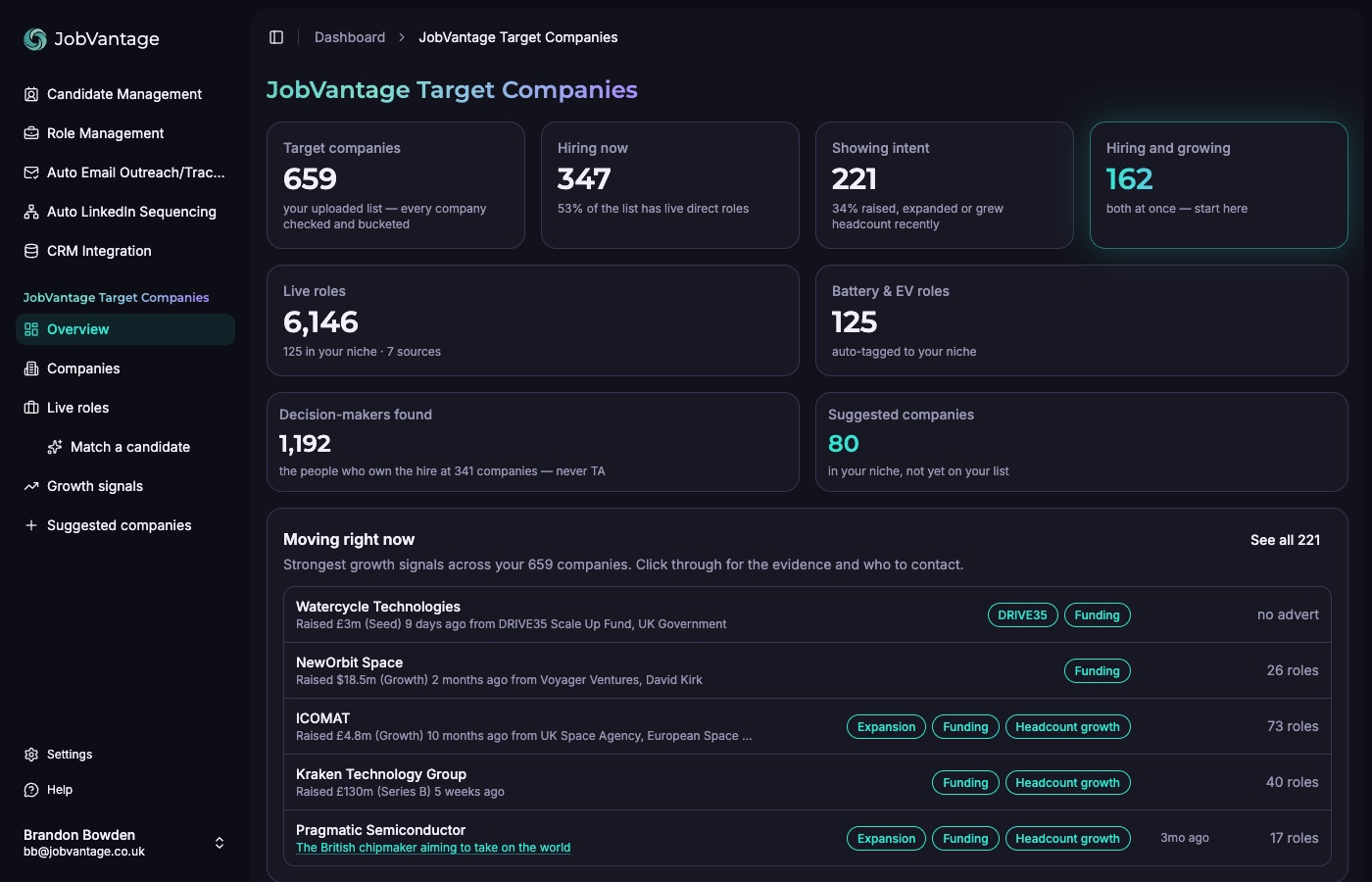
A working rhythm that makes sense: start at Overview and open the Hiring and growing bucket: companies with live roles and a growth signal are the warmest doors on your list. Then work Moving right now: each entry shows the signal and its evidence, and clicks through to who to contact. That is a BD call list with the "why now" already written.
Companies
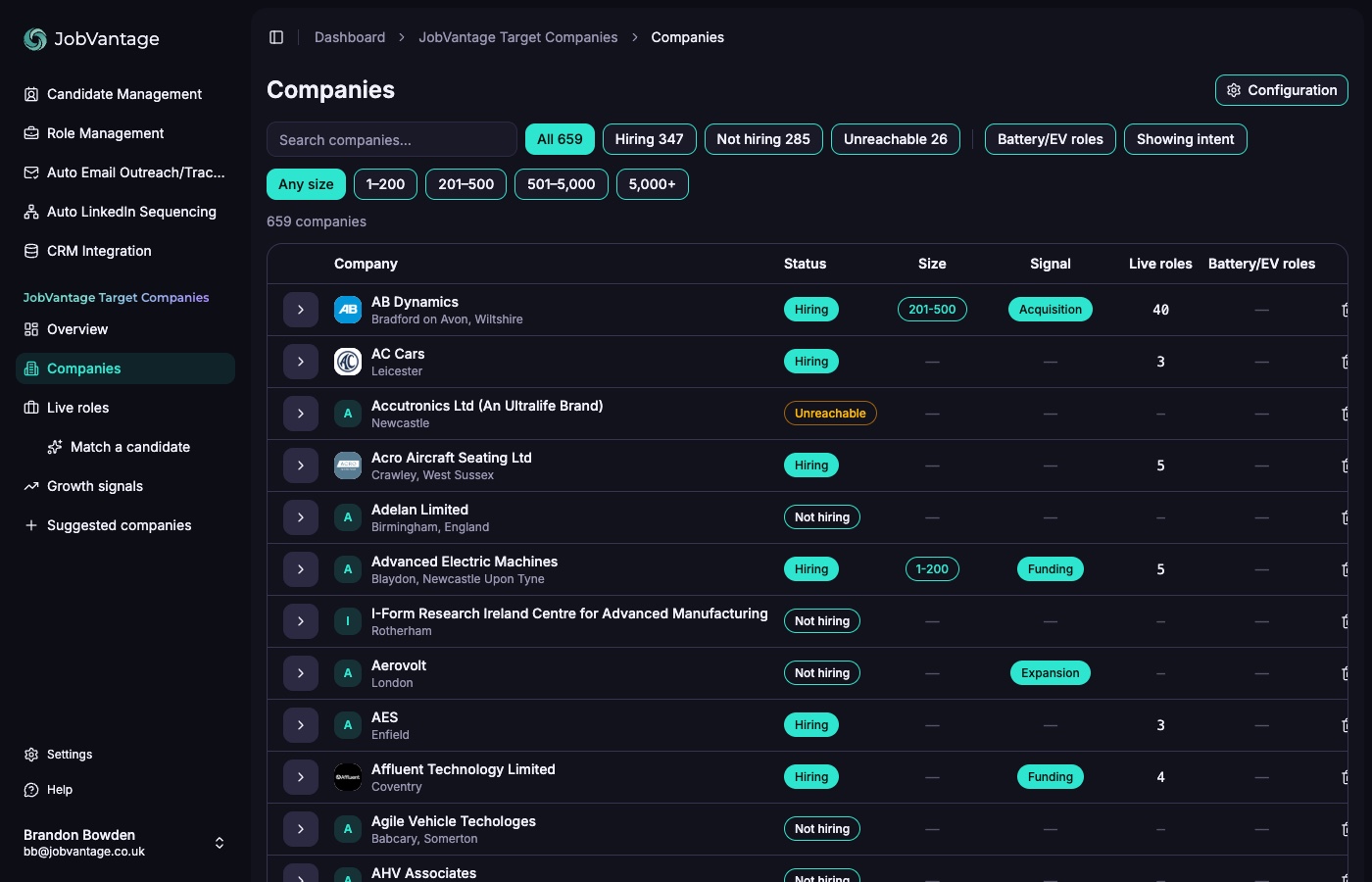
The whole list, one row per company, filterable by hiring status, employer size, intent and roles in your niche. Honest states included: "not hiring, verified" means we checked, not guessed, and "careers page unreachable" is said out loud rather than counted as a zero. Click any row for the evidence and the people.
Live roles
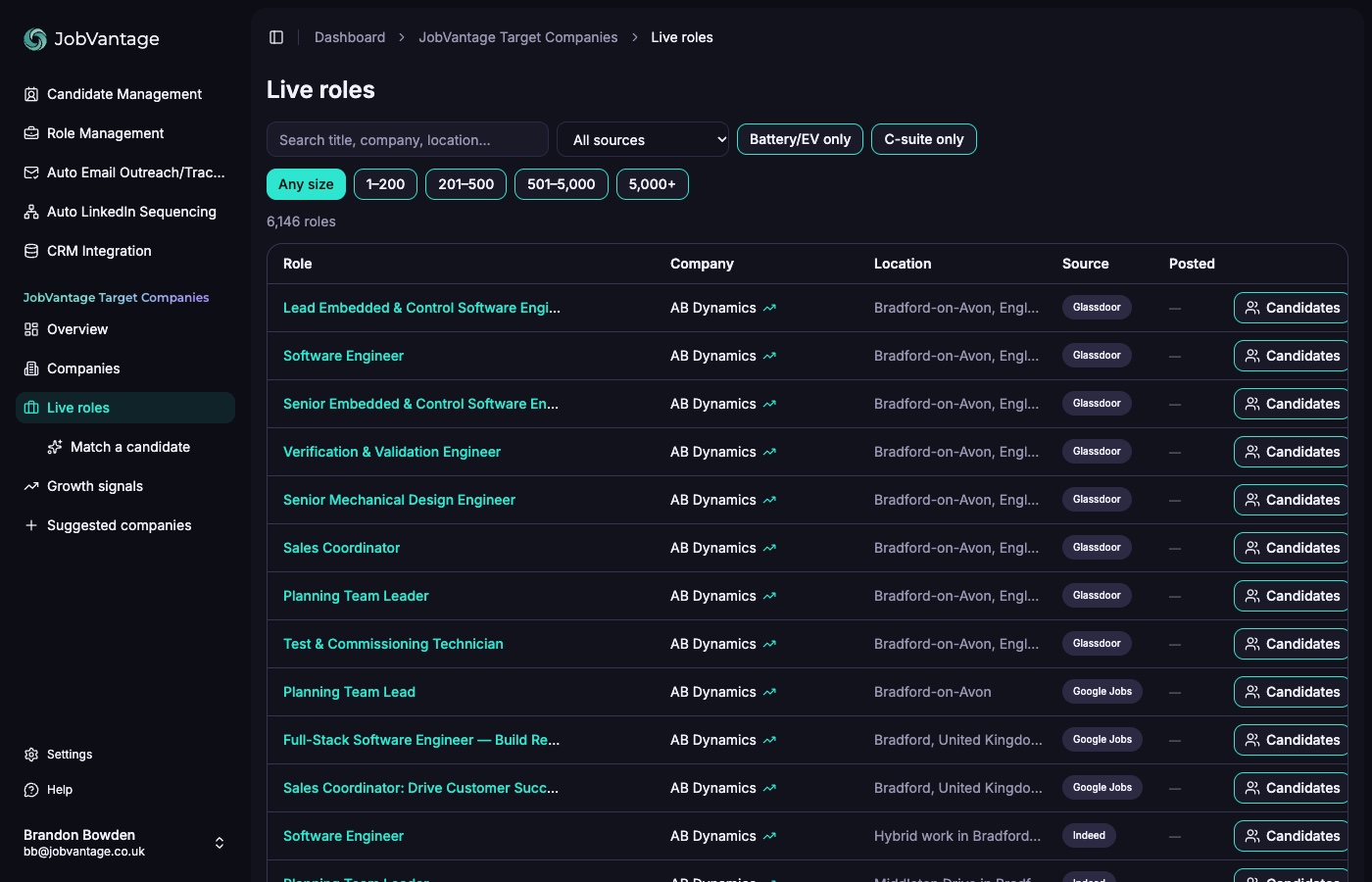
Every direct vacancy across the list in one table, pulled from multiple sources (LinkedIn, Indeed, Google Jobs, Glassdoor, the companies' own sites), agency adverts excluded, your niche auto-tagged. Filter to niche-only and you are looking at the jobs your candidates belong in.
Match a candidate
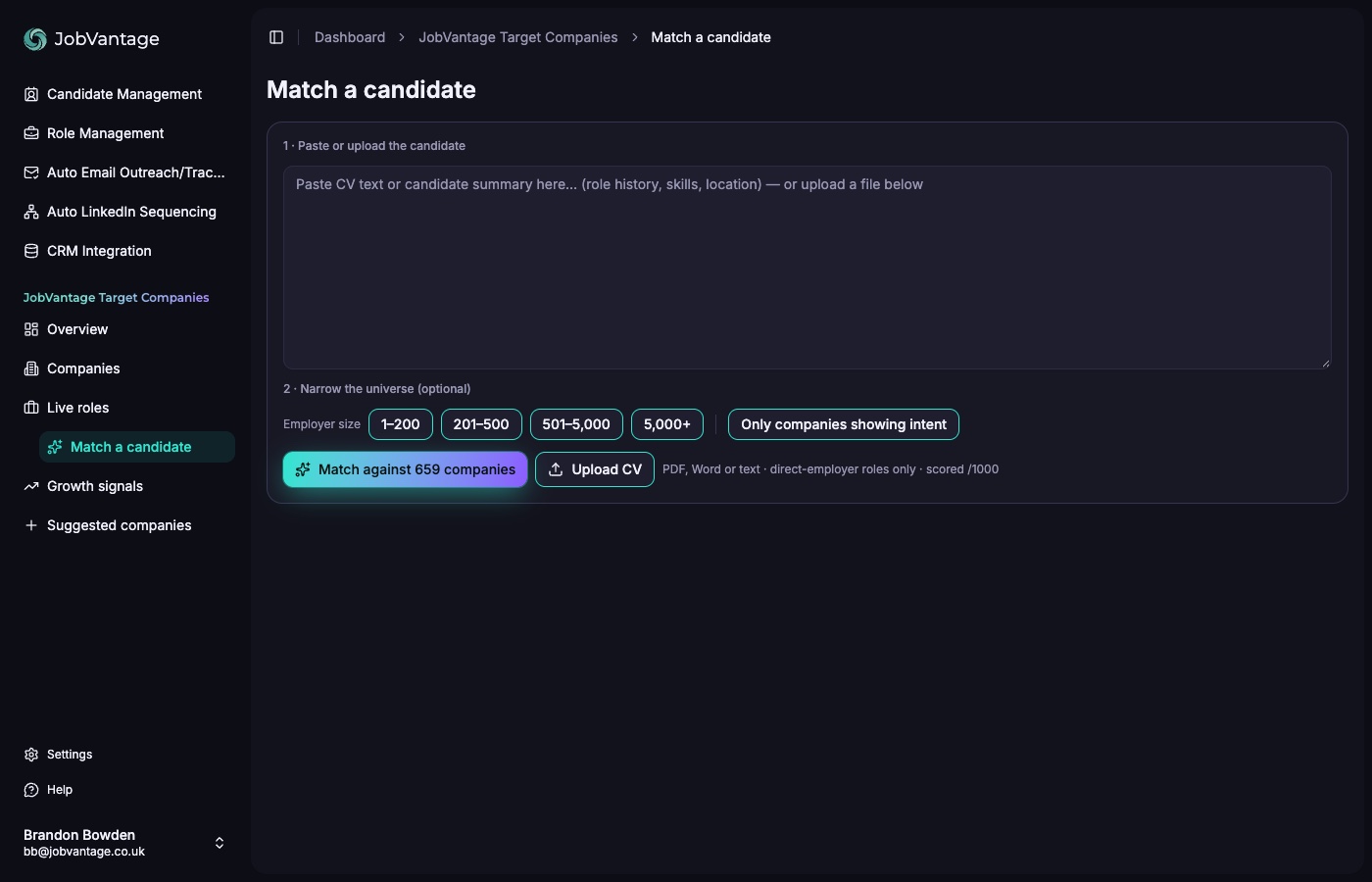
Paste a CV or upload the file, optionally narrow by employer size or intent, and match them against the whole list, scored out of 1,000, direct-employer roles only. This is speccing aimed at your own market: instead of asking "who is hiring this person's kind of role anywhere", you are asking "where on my patch does this person land".
Growth signals
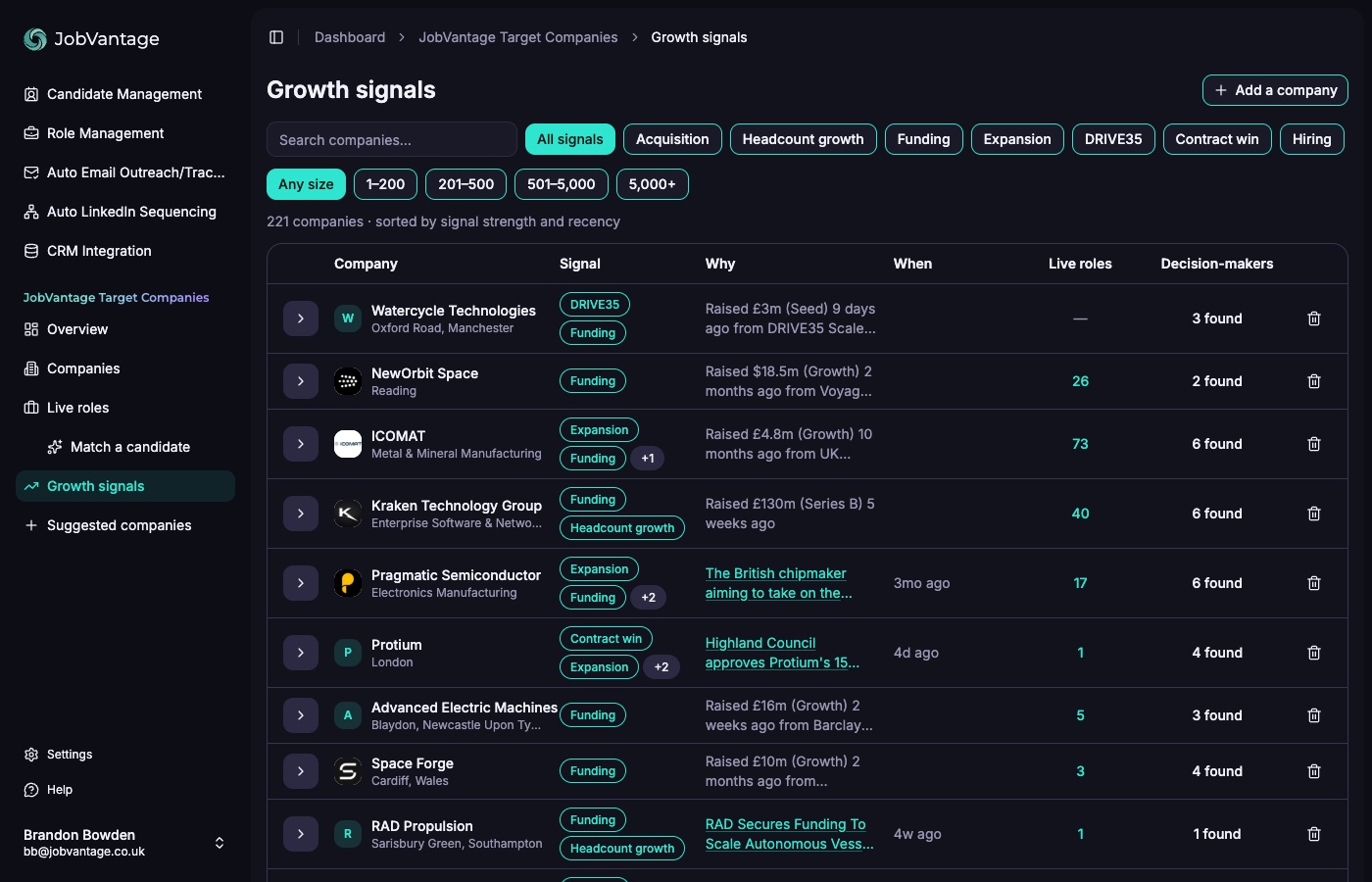
The evidence feed behind the intent buckets: every company with a signal, sorted by strength and recency, with the why next to it (the raise, the expansion, the acquisition, the leadership change), each one linked to its source and dated, and the decision-makers already found. Filter by signal type or size and work it as a call list.
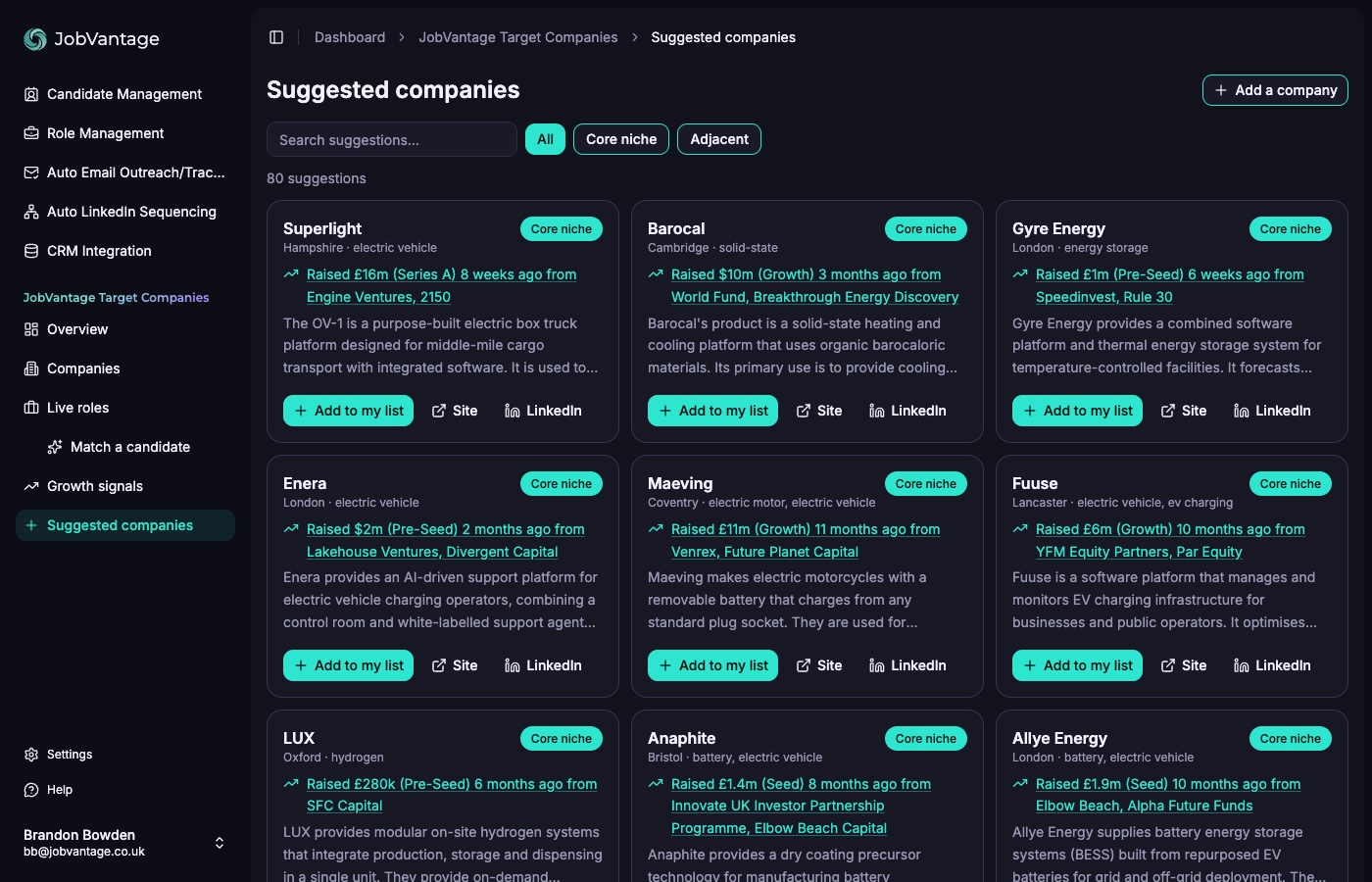
Suggested companies
Firms in your niche that are not on your list yet, surfaced from the same signal scan. This is how the list grows: review them, add the good ones, and the rest of Target Companies picks them up automatically.
Also available on request
Email and LinkedIn sequencing are live for accounts that ask.
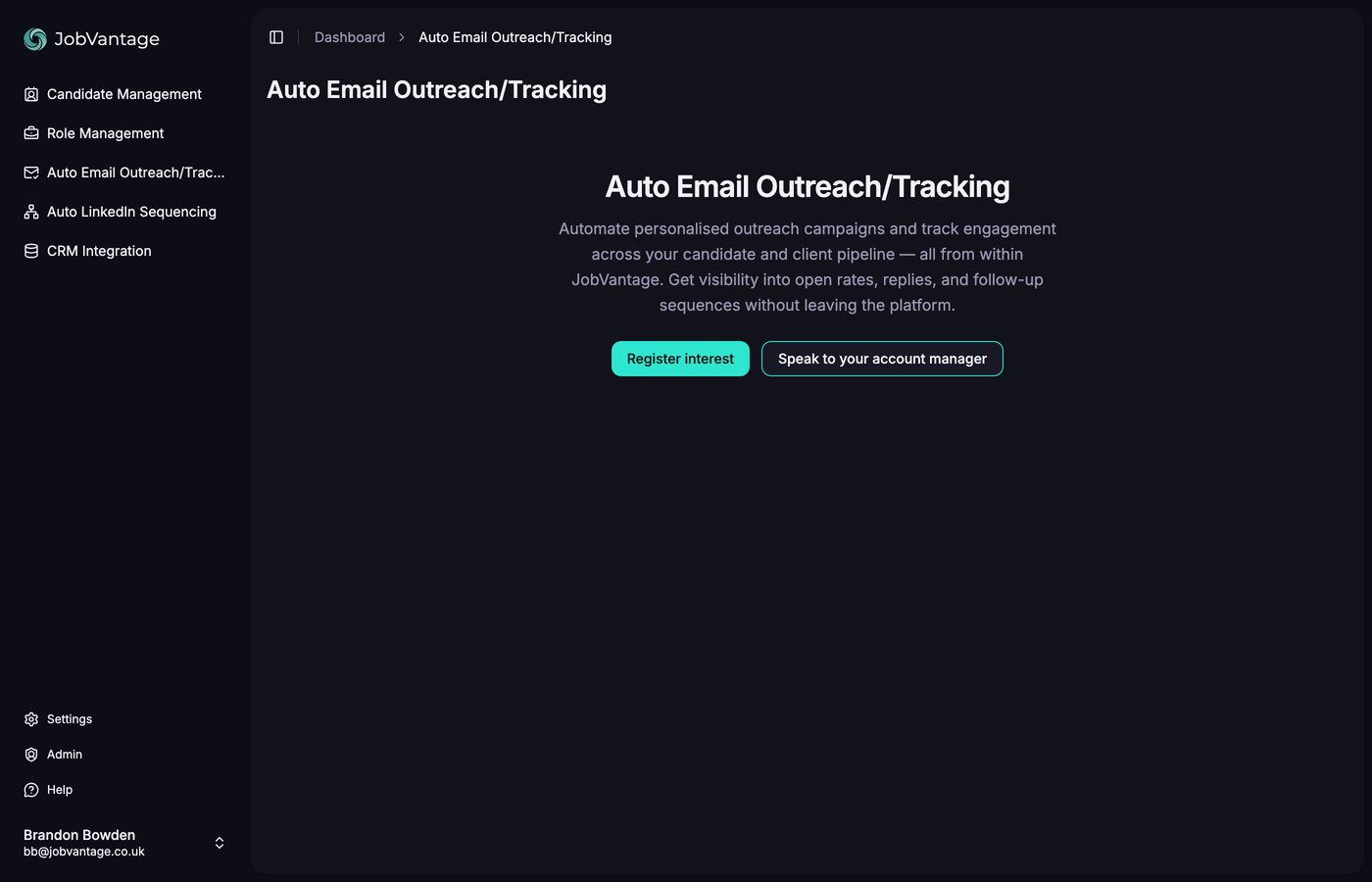
Two more modules sit in the sidebar and are available now, on request: Auto Email Outreach/Tracking, personalised campaigns with open, reply and follow-up tracking run from inside JobVantage, and Auto LinkedIn Sequencing. Hit Register interest in the app or ask on Teams and we will switch them on for your account.
CRM Integration sits alongside them and is in the works. Register interest there too and tell us which CRM you run. Also being built: propensity signals, meaning how likely a company is to be hiring, and how likely a candidate is to move, with the reasoning behind each. Ask us on Teams if you want the detail.
A daily rhythm that works
What the recruiters getting the most out of this actually do.
- Collect the A-player CVs that come across your desk into a pile.
- In the morning, bulk upload them and start all the runs. Leave it.
- In the afternoon, come back to a set of completed runs and spend half an hour to an hour firing out relevant, targeted outreach: spec emails, LinkedIn messages and calls off the back of those candidates.
The point is to get value out of good candidates that would otherwise sit on your books doing nothing.
Settings and support
Two settings worth knowing, and how to reach us.
Automatically run and match on upload
In Settings, under Uploads, this toggle starts a run the moment a candidate is uploaded, so you skip the New Run step entirely. It is off by default.
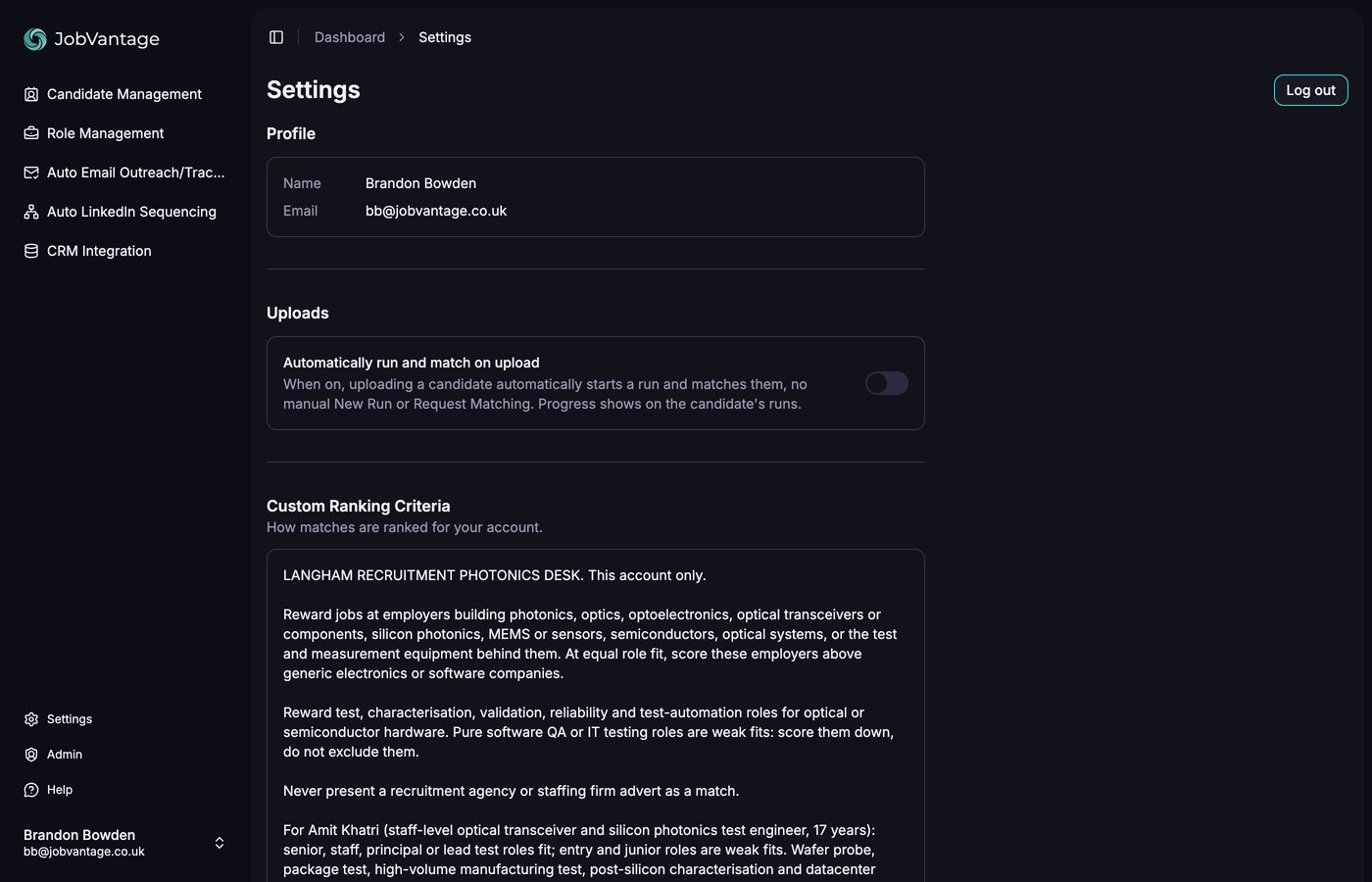
Leave it off if you intend to edit candidate profiles first, because the run starts before you have made your corrections. Turn it on when you are loading a batch and you are happy to let the system work from what it extracted.
Custom Ranking Criteria
Also on the Settings page: how matches are ranked for your account. If over time you find you are getting too many large corporates and would rather see smaller businesses and startups, that can be weighted for you. Tell us what you are seeing and we will set it.
Getting help
You will be added to a Microsoft Teams chat with the JobVantage team. Anything at all, problems, questions, or just how it is going, send it there rather than email. It gets to us faster.
Common questions
The things people ask in the first week.
Stuck on something?
Customers get a shared Microsoft Teams chat with the JobVantage team. Send it there and it gets to us faster than email. Not a customer yet? Book twenty minutes and we will walk you through it live.